A travel SSD should be easy to recover from
Speed helps during a copy, and a clear backup routine matters when a drive is misplaced or stops responding.
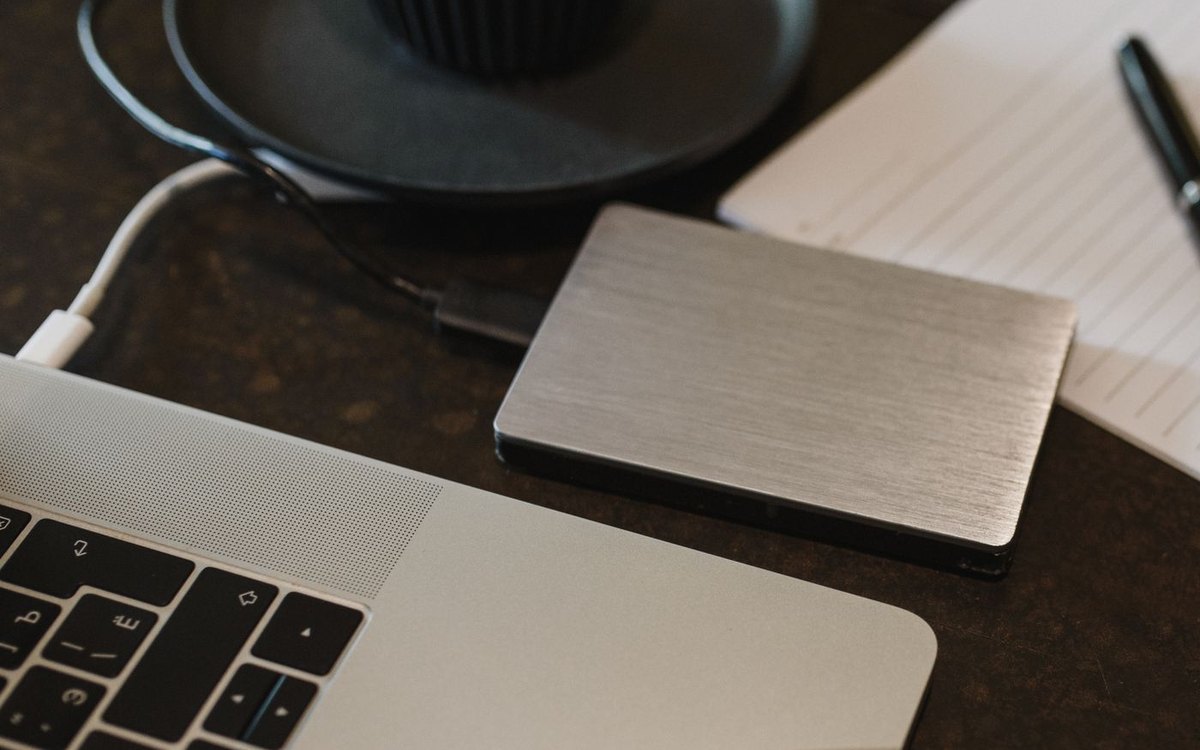
On the road, a portable solid-state drive can become the temporary home of a week's valuable work. The drive may ride in a different case from the laptop, or it may remain connected beside the machine all day. Those two habits have different consequences after a lost bag. Begin by drawing a picture of where your files live at the end of a normal day. If only one device contains an important session, plan a second complete copy before deleting the camera card or the original.
Pick a size by measuring real folders
Find two representative trips or projects and count the space used by each. Include source files, applications' working files and the exported material you may need to revisit. The same project can occupy more space than its source footage if an editing tool creates previews and intermediate files. Choose whether those intermediates need to survive or whether they can be built again. Leave room for an unexpectedly productive day so that the final part of a trip can run without deleting earlier sessions.
A fast drive can be held back by an older port or a cable meant for charging. Try it with the laptop and cable you plan to use, then move a familiar folder with a few large files and another with many small files. Those workloads can finish at different speeds. Test that the drive remains comfortable to handle and behaves consistently through the longer copy, following the manufacturer's placement instructions. If your computer presents a choice of power-saving settings, confirm the drive still mounts predictably on wake.
Decide when the second copy exists
A message that says a copy finished is a useful start. For an important project, write down when a copy becomes good enough for you to reuse the source media. You might wait until several randomly chosen images open from the destination and the total number of files matches. An application that verifies source and destination checksums can provide another check when the material warrants it. Retain the first recording medium until you have satisfied the rule. If the drive is the first backup and the laptop is busy editing from the original folder, identify which copy will be left untouched.
A duplicate inside the same enclosure helps in a few ordinary mistakes. It cannot protect against an enclosure that gets lost or stops working. Keep the two drives or the original card and the backup in different safe places when practical. If you are traveling with a colleague, agree who will keep a duplicate and how they can identify the right one. Never send a colleague a private encryption secret through the same unsecured channel you use to approve the copy. A short transfer log can record that a copy exists without containing its contents or key.
For a longer trip, make the backup routine easy to perform while tired. Use a file naming convention based on dates and activities and set a nominal stopping point for each day. A descriptive name such as the date and camera identifier makes it possible to connect a card to its first folder. Keep notes of changes made during editing. Mark a folder as verified only after the check, so that a copy interrupted by a dead battery cannot be mistaken for a finished session.
Distinguish an archive from a fast scratch disk
Scratch space feeds an editing application. It can be useful when the application generates temporary files and clears them later. An archive needs to hold the files you intend to open months later. Put those purposes in visibly distinct folders and confirm that temporary files can be rebuilt before excluding them from backup. A scene for an evening preview may be disposable. Image selections, original audio and signed notes can have entirely different value. If a tool places project edits and cache beside each other, learn which ones are necessary before you strip the folder down for travel.
A drive may achieve a very fast transfer for a short burst and settle at a slower rate later. Write a familiar full project and monitor the entire copy, especially if you often work in a warm room. Use the drive on a stable surface in the manner the maker recommends. The device and laptop may throttle performance under heat or power constraints. A successful copy should also finish predictably enough to plan around a closing office or departing train. A ten-minute average is more practical than remembering an impressive first number.
Take several spare minutes to close the active application and eject the drive through the system before unplugging it. An open file might still have changes buffered on the laptop. A laptop in a travel bag can briefly remain active after the lid closes depending on its settings. End the transfer deliberately before winding up the cable. Give the drive a small protective pouch that prevents pressure on its connector and keeps loose plugs from pressing against the case. Take a known cable that can be replaced without an obscure adapter.
Make a simple recovery drill
Start with a named folder containing a small piece of harmless work. Copy it by your real travel method and detach the source. On another authorized computer, connect the backup and open one original file. If you used encryption or a backup application, follow its documented procedure to unlock or restore the material. The exercise checks whether workflow notes, compatible hardware and recovery access are actually somewhere you can reach. A short first test is cheap compared with reconstructing a failed project in an unfamiliar room.
Repeat the drill with a larger file and compare its contents. Some network or filesystem arrangements have specific file size or filename constraints. A small image passing a test does not tell you whether a long recording will pass in the same arrangement. Check a folder whose names include the date, spaces and the languages you use. It should arrive in a form the next person can understand. If renaming is required, agree on a naming convention before material has landed inside many referenced project files.
Know when to stop trying the device
If a drive begins disconnecting while attached in the tested setup, verify your last complete copy. Switch to a known good cable and port only when it is reasonable. When a drive contains the only copy of irreplaceable material and repeatedly fails, stop writing to it and consult an appropriate recovery or support service. Reformatting a drive can overwrite information needed for recovery. A prompt to initialize unfamiliar storage may simply be the operating system encountering an unsupported format.
Write down your examination order on an offline note. It might begin with locating the second copy, then verifying the cable and mounting the known drive before connecting the suspect one. Resist making several simultaneous changes, because the next person must be able to reproduce what worked. If you can continue from the backup, keep the original data available while you investigate separately. Your travel plan succeeds if the job can continue even when a little drive packs itself out of the workflow.
A recovery person may have a fast new computer and still be unable to help because the traveling drive has an adapter they cannot find. Document both ends of the route. If the drive uses a common connector, confirm the exact cable supports data and attach a label so it remains with the case. Carry a practical spare when the work depends on it. At the hotel or meeting room, place the connected drive where you can see both the activity and the direction someone walks past the table. A cable resting across the edge makes a very ordinary way to interrupt a long transfer.
Set an endpoint for the traveling drive's job. On your first day home, copy the material into the main library, verify the file count and open randomly chosen originals. Keep the most recent independent backup until the main library and its own backup are updated. Then clear only what you can identify and replace. This handoff prevents a spare travel drive from becoming a forgotten long-term archive that nobody knows they need.
Plan for more than one operating system
Think about which person and machine may need to open the files next. Choose a format supported by those systems and confirm it with a small test that writes, ejects and reads the same folder. Operating systems have different options for encryption and removable drive support. Encryption can help if the drive is lost, provided you can recover the credential. Keep recovery details stored appropriately away from the travel kit and avoid recording secrets in a plain text file on the drive itself.
Give both copies a creation time and stable names so you can work out which has your latest changes. Verify the result by opening a few files from the destination and comparing the copy with the source. When there is an internet connection, a remote copy can help protect against the loss of both pieces of physical equipment. On a slow connection, prioritize the irreplaceable files over thumbnails and render caches that can be regenerated. A drive chosen around this schedule can travel quietly in the bag because you know which cable works and where every important copy is supposed to be.