A quieter computer starts with the loudest five minutes
Identify which component creates noise under the work you actually do.
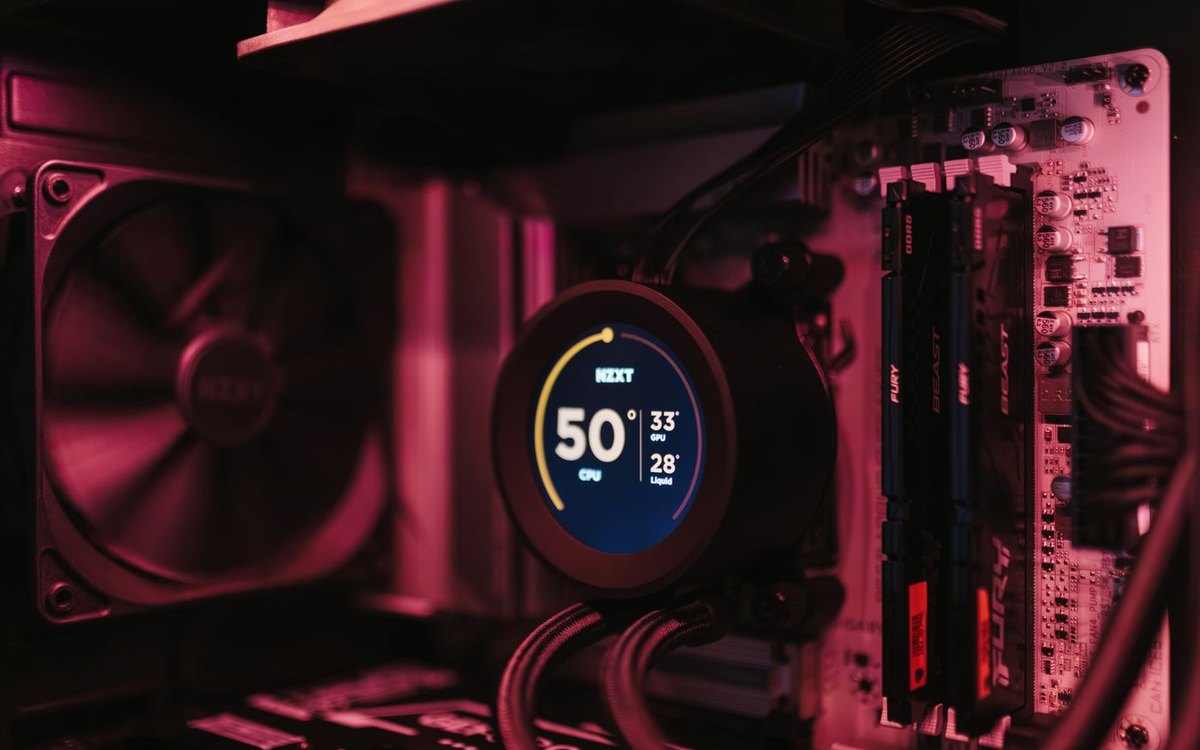
Desktop fan noise becomes easy to ignore until it sweeps into a microphone or you spend an evening listening to it. Begin by recording when the sound arrives. A short burst while launching an app, a ticking fan at idle and a steadily rising roar during a render are separate clues. Read temperatures and fan speeds with a supported monitor while doing one repeatable task.
Change one variable
Clean accessible dust filters according to the manufacturer’s instructions, after shutting down and unplugging the machine. Check that the case vents have clear space and that cables are secured away from moving fans. If fan settings are supported, make a modest adjustment within the recommended range and rerun the same workload while watching temperatures. Restoring the previous profile should be straightforward.
Put the sound on a timeline
Run a harmless task that repeatedly produces the sound you want to understand. Start a clock when it begins and listen from the place you normally sit. Notice whether it gets loud immediately, waits a minute or keeps going after the task finishes. Write down the processor or graphics load shown by tools supported on the system. A temperature that rises with a long sustained job can explain why fans keep increasing. A single click at one fixed time can be a different event.
Compare an idle desktop, a task dominated by the processor and one that uses the graphics hardware according to your usual routine. You can use normal applications instead of an artificial stress test. Let the machine settle between tasks where appropriate. Keeping the intake and exhaust clear, use the same case position and a reasonably similar room temperature. Check which sensor and fan labels the hardware provides. The numbers are more informative when you can associate them with the device doing the work rather than with a general reading called temperature.
While listening, separate frequency from level. A broad rush of air can be tolerable at one intensity while a narrow tone at the same overall loudness attracts attention. A gentle change every few seconds can interrupt concentration more than a stable sound at a slightly higher rate. If you record a short sample at your seat, use the same device and recording settings each time. A phone microphone can make comparisons easier, though its automatic gain and position make it unsuitable as an exact sound-level instrument.
Give the system room to cool the way it was built
Inspect the vent layout. A tower may take air in near the front, bottom or side and exhaust it elsewhere. Clear loose bags, paper and cables around the route. Follow the maker's clearance guidance and place the computer on a stable surface that leaves the openings available. Moving a tower slightly farther from a wall can give its exhaust somewhere to go and change what the listener hears bounced back from that wall.
With the equipment switched off and unplugged as required, check removable filters and accessible openings according to the manual. A filter with a thick layer of dust restricts the same path the fan depends on. Use the cleaning procedure appropriate to that component and avoid opening the power supply. If the case has a service restriction or a part is not user-accessible, rely on appropriate service. Keep the normal covers and panels where the maker expects them, since some case airflow depends on the path those panels form.
Place the components and nearby equipment as they were before you compare. A book leaning against a side panel can transmit vibration, and a cable pressing into a grille can alter the sound near an opening. Move exterior objects out of the way before making changes to the system. Test while you can still hear the difference. A mechanical vibration often becomes clearer when the room is quiet, and its effect can vary with a hollow shelf or a sturdy desk.
Adjust supported controls with an exit route
A fan curve describes which speed a component or controller requests at a particular temperature. Some controls also let the system respond gradually, so a tiny temperature swing does not change speed immediately. Use documented settings when available. Save the normal profile and make one modest change inside the hardware's recommendations. Check the result during the same task, keep an eye on the relevant temperature and restore the original setup if the system reports a warning or performance gets worse.
Allow enough time for the case to warm up and for temperatures to level at the usual load. The first sixty seconds after a cold boot can understate how much airflow the same job requires later. You may need a short test at idle and another as your typical sustained session finishes. Watch the graphics hardware as well as the processor when the noise comes from an editing, rendering or game workload. Different components can control their own fans without using the same utility or measurement source.
For a job that runs faster than necessary, see if the application offers a supported way to limit its work. A game frame limit, an editor preview setting or scheduling a large export for an empty room can change the task without altering cooling. Test whether it leaves the part you need responsive. Quiet cooling is one method to reduce interruption. Running the work at a pace that suits the room can solve the same specific problem with less maintenance.
Decide whether the room or the machine is doing the amplifying
Move the desktop to another appropriate position and keep the keyboard, monitor and listening position otherwise similar. If the sound becomes less intrusive, compare open space beside a desk with a rigid shelf safe for the case. Keep enough clearance and avoid enclosed cabinets that trap heat. Where equipment sits close to a microphone, reposition the microphone and make a short harmless recording. It may be easier to keep a fan out of a voice recording by moving the recording position than by changing the computer.
Listen for drives and parts outside the fans. Storage activity may add vibrations only when opening some folders. A high-pitched sound that changes with a graphics load has different characteristics from a scraping sound at one fan speed. Do not touch or obstruct any moving part during investigation. If a fan appears damaged or a new sound coincides with a warning, shut the system down safely and check with an appropriate service provider. Precise notes about the workload and the audible pattern help someone test without having to guess.
Make the quiet setup sustainable
Save the settings and conditions that produced a result you can repeat. Include the system mode, the room arrangement and a few typical measurements under load. When the weather changes or you add a new device, compare through the same recording and work cycle. A desktop that behaves quietly at nighttime temperature may need more cooling in a hot afternoon. Make it easy to return to the original settings rather than relying on a configuration you no longer remember changing.
Distinguish acceptable noise from silent equipment. A workstation often needs more cooling while it completes substantial work. Decide which five minutes of the normal day are unacceptable and what the machine should keep doing through them. A repair may make sense for a failing bearing, a clearer desk for an echo and a timed render for an occasional sustained load. A solution that preserves the work and removes the interruption you notice is worth keeping even if you can still hear some air when the room is still.
Check the simple routines that make measurements inconsistent
Before comparing two afternoons, consider the temperature in the room and the age of the system session. A desktop that just woke from sleep may read differently from one that has already exported several files. Let the load and the room settle long enough to recognize the baseline. Check whether a scheduled operation such as a backup or an application update was running before the noisy test. Include it if it is part of the usual job. Allow it to finish if it was a rare event you cannot reproduce.
Keep the computer in a safe position with the panels installed in the intended configuration. A move to a floor can change reflections and also place the case near more dust, especially on thick carpet. Follow its placement instructions and check how you will see and clean the filters. A previously quiet part can become harder to maintain after moving equipment to an inconvenient corner.
If you support another person's computer, show them the test and tell them what conditions produced the change. Record the original default and the service contact for the model. A different game, a hotter room or an application update could justify revisiting the setting. The best maintenance change can be repeated by someone who did not hear the original problem.
Look beyond cooling fans
A mechanical disk can vibrate through its mounting frame. Coil whine may change with the graphics workload. A fan with a damaged bearing usually sounds different from turbulent air pushing past a grill. Consider where the case sits and how sound reflects from nearby walls. A clear desk position and a well-maintained stock cooling setup may solve the daily interruption without a new cooler. Keep a note of the original profile so you can return to it when the season changes and the room warms up.