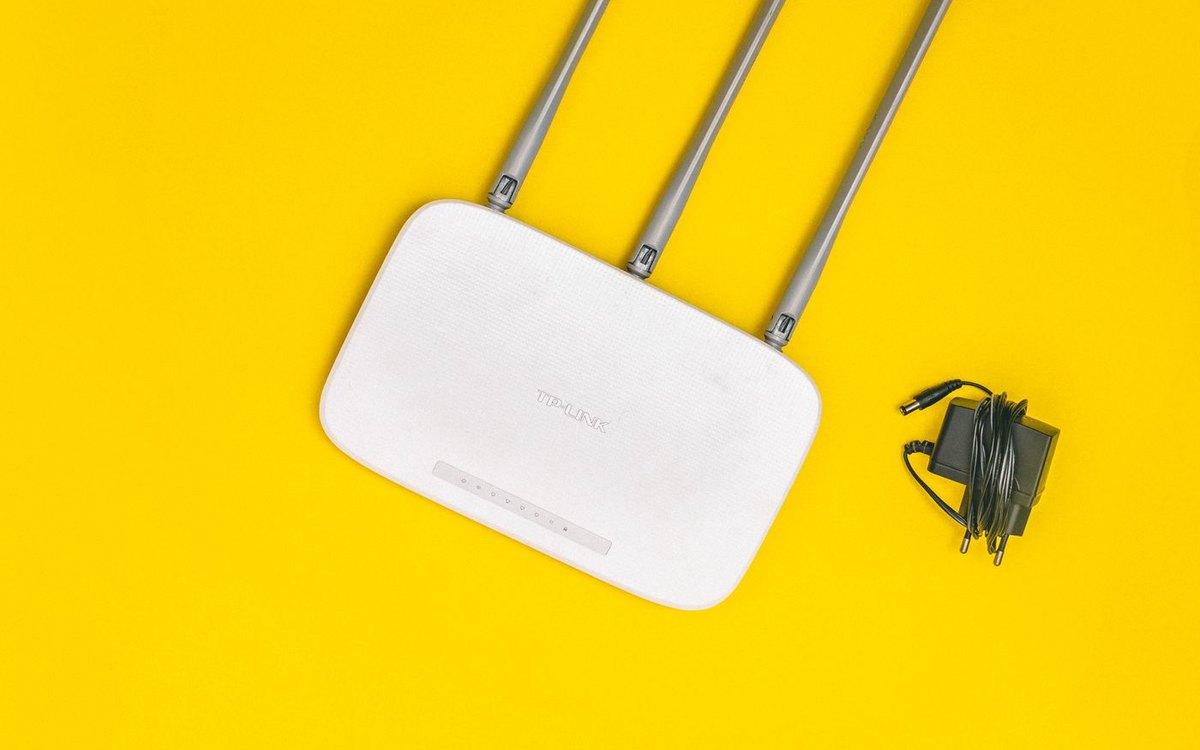
Modem, router or access point? Work out which box you have
Identify what each piece of equipment does before buying a replacement.
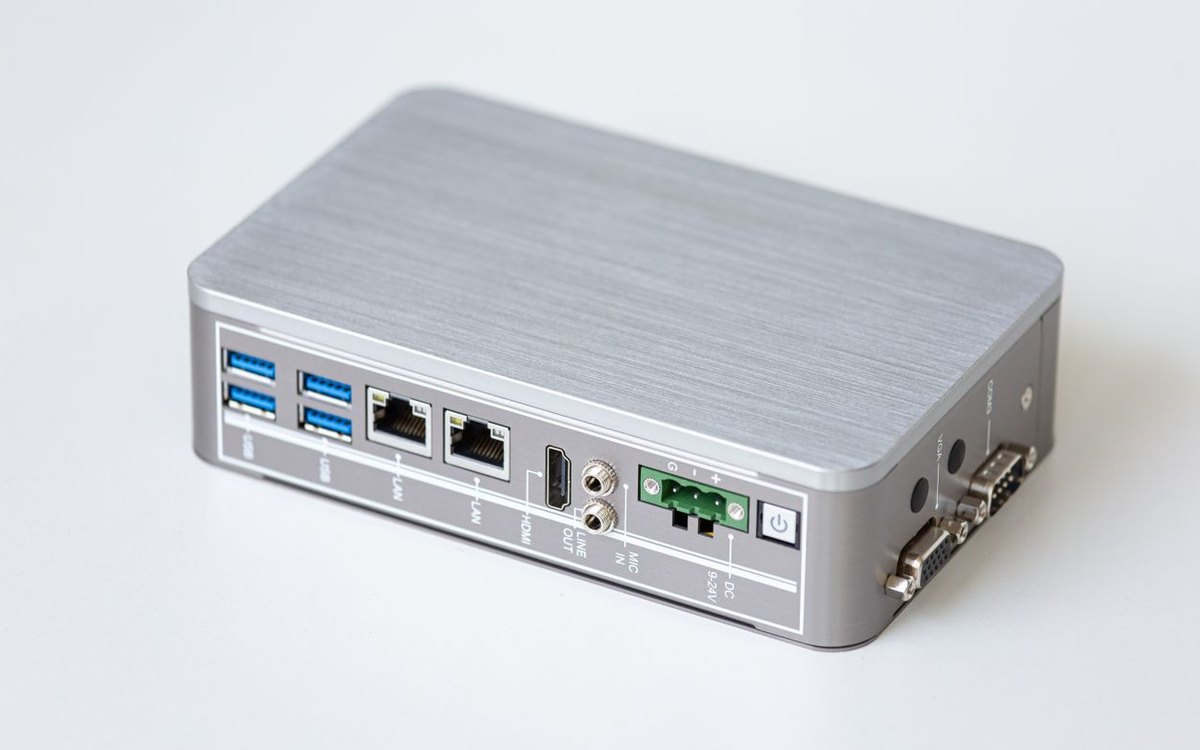
A cable or fiber provider usually supplies a device that faces its access network. The router in a home directs traffic between networks and often also acts as a wireless access point. The terms on a plastic enclosure can be confusing because one box may perform several roles. Start by following the visible cable from the wall and listing the devices it reaches.
Find which device runs your local network
Look at the provider’s setup guide and your equipment manuals. Determine which unit creates the Wi-Fi network name and which one manages home devices. A separate access point can supply wireless coverage without taking over the routing job. A mesh product can sometimes operate in more than one mode. The correct mode depends on which other equipment is active and which features you rely on.
Keep the working path visible
Draw a simple diagram and write the model on each box. If a network stops working, confirm where status lights change before unplugging several things at once. If you plan to add equipment, take note of its supported setup and make one change while you can easily return to the working configuration. Knowing which box performs each job gives you a much better starting point for support.
Identify the piece supplied for the connection
The first device is the handoff between the provider and the home. A cable modem commonly connects to a coaxial cable. A fiber service may terminate at a device called an optical network terminal, often abbreviated ONT. Verizon’s fiber documentation illustrates a common arrangement in which the ONT converts the incoming optical signal and reaches the router through Ethernet. Providers and installations vary. Some fixed-wireless services use an indoor gateway or an antenna elsewhere on a building. Find the installation record for your connection before assuming that another home’s diagram applies.
Follow only accessible cables and read the markings on the equipment. Leave installed fiber connectors and other provider wiring in place. A lead may go from the wall into a cabinet, and a box that looks unattached to the internet may be fed from the other side of a room. Look at the provider’s app or service documents for the exact model. It helps to note whether the equipment is rented, supplied as part of the service or owned by a resident. Those details determine what the provider will support and whether you are choosing an upgrade or replacing something it already maintains.
Find the point where internet and home traffic meet
A home router directs traffic between the home network and other networks. A common design has one port for the upstream connection, labelled WAN or Internet, and wired ports for local devices. Many routers also assign local addresses using DHCP so phones and computers can join without someone typing addresses one by one. For typical IPv4 home connections, the router may use network address translation, or NAT, to share an upstream address among local clients. Consult the equipment documentation to see which features are available and active in your own setup.
For the diagram, mark where the home devices receive their addresses and which unit provides the connection to the internet. Two devices that have routing features can sometimes form a working arrangement. Problems become harder to diagnose when both create separate local networks and it is unclear where a printer, game console or computer lives. Examples include a wired printer connected to the provider box while a household laptop joins a second router. Both devices may have internet access while local discovery fails. Draw the address boundaries as well as the cables before changing settings. You can often see the reason for the behavior on paper first.
Separate the Wi-Fi role from the routing role
An access point lets wireless devices join a network. A typical standalone unit has a wired link back to another device that handles routing. A home router commonly combines wireless access, routing and a small Ethernet switch, which is why its name is often applied to all three jobs. If you already have a satisfactory router and the main problem is coverage upstairs, you may be able to add wireless access on the existing network. That choice runs through the physical route the access point will use and how it is supported, rather than the number of devices in the cupboard.
Look out for mode names. A wireless router operating in access point mode can extend an existing network while leaving internet routing to the upstream device. Some services that the second router provides in router mode are disabled in access point mode. NETGEAR, for example, explains that capabilities such as remote management or certain guest options can depend on the mode and product. A manufacturer may also use another term for a comparable configuration. Check the exact model and decide which device will own the features you use, such as a guest network or address reservations, before adopting a new layout.
Compare two common ways to add a system
In one arrangement you keep the provider gateway as the router and connect a new wireless system in the access point configuration it supports. That can preserve the gateway’s existing role and may leave more of the provider’s setup familiar to support. Check whether the wireless system supports the features you want in that mode. Check how its documentation handles the provider unit’s own wireless service. If two independently managed wireless networks are both left active, devices may remain connected to a distant one longer than you expect.
In another arrangement a provider-supported bridge or handoff lets your equipment take the main routing job. Confirm what the provider supports and whether any other services rely on how its equipment currently runs. A provider-supplied voice service or television device can have installation details you would miss by looking only at the Wi-Fi. Ask about any required settings and save the current configuration as the vendor directs. Before changing a setup that works, have the exact two devices on your diagram and a straightforward way to return them to their previous roles. If you mainly need to add Ethernet ports, a suitable network switch may solve a smaller problem without rearranging which device routes.
Think through a quiet example
Consider a fiber terminal in a utility cabinet. It has an Ethernet connection to the WAN port of a router in the hallway. The router manages addressing and serves most rooms with its built-in Wi-Fi. A cable from a local port reaches a small switch in a study. That switch connects a desktop and an access point placed where the study and adjoining bedroom need coverage. Both rooms use the existing router for internet access, while the new access point adds the local radio coverage. Marking that relationship prevents a very common mistake during support: unplugging the switch because the equipment above it is the only box with antennas.
Now imagine that the study desktop can reach the internet but the adjacent phone drops a call. The fiber terminal and hallway router have just carried traffic from the desktop, which narrows the place to investigate. Verify that the phone joined the intended wireless network, check the nearby access point and run the same call again. If the desktop and phone both fail, check a device closer to the router. If every local device fails and the provider status changes, use the provider’s supported outage process. A paper diagram will not locate every fault, but it can tell you which successful observation rules out several guesses at once.
Preserve evidence during an outage
Write down the first symptom and the time it appeared. Check whether multiple devices are affected and whether both wired and wireless access fail. On equipment with readable status lights, compare them with the manufacturer’s or provider’s descriptions. A light often represents one condition, such as attached power, an active Ethernet connection or an upstream fault. Meaning varies by model. Take a private note of the state before restarting something, and follow the supplied restart order if the provider gives you one. Some devices take a few minutes to reconnect completely after power returns.
Avoid changing network modes as a first response to a sudden failure in a layout that has been stable. The present setup is information. A factory reset can remove settings that are needed to get back online and should follow the documented recovery procedure when appropriate. If you contact support, be ready to name the provider equipment, the router that actually runs the home network and the first device that stopped working. “The laptop still prints locally but our wired desktop cannot reach any website” helps the person on the other end ask a narrower question. So does identifying the box whose upstream status changed.
Make the handoff understandable to someone else
Tape short labels to removable home-owned cables where it is safe to do so. Label them by destination or role, such as “study switch” or “router internet.” Keep account credentials in the secure place you normally use. The diagram can show the provider account owner, equipment labels and the location of instructions without exposing a password. Add the date you last checked it. A home network that only one person understands can become difficult to repair when that person is away or the next equipment replacement arrives with a different set of ports.
When you add or remove a device, confirm internet access from an ordinary wired and wireless client if you have both. Then do one local task the family relies on, such as printing, casting or reaching shared files. Keep the diagram if it gives the same explanation for all three results. The purchase question also becomes more concrete. You can name the job a piece of equipment needs to take over and check whether the candidate supports that job in your exact arrangement.