Test earbud call quality with the room you work in
A familiar voice, a short recorded conversation and the right background sound reveal more than a silent shop demo.
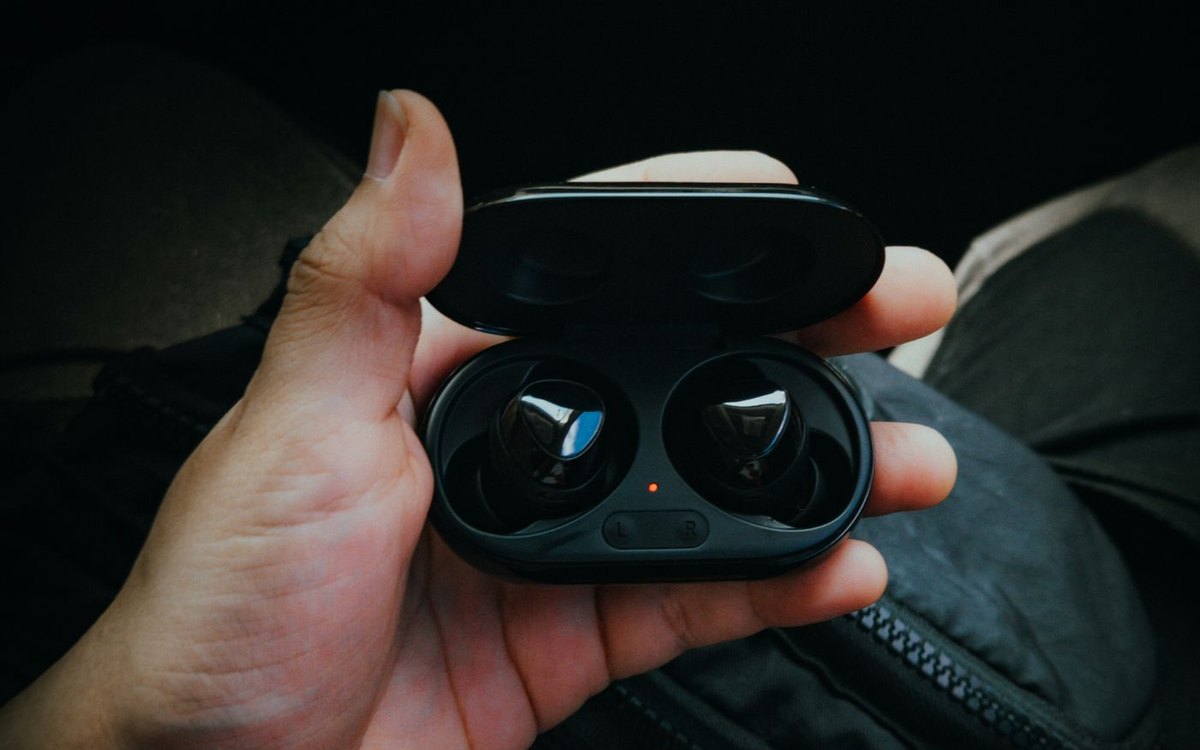
Earbud microphone quality is easy to miss while listening to music. The audio going to your ears and the voice sent to another person are different paths. At a quiet desk, many earbuds can get the words across. A microphone has a harder time picking up speech in a kitchen with an extractor fan or outdoors on a windy corner. If you depend on calls, design a short test that passes through the app and equipment you already use to talk to people.
Make the recording familiar
Start with the phone or laptop and the meeting app you normally use. Use the closest available microphone test or ask a willing listener to tell you which words disappear as you read a short paragraph. Speak a line with soft consonants and a line where you pause awkwardly, because voice processing can handle them differently. If recording is available, get permission and use an innocuous script with no private information. Make a comparison with the device microphone and with any wired headset you can reach.
Repeat the call indoors with a constant background noise like a fan. Try a second recording with intermittent noise, such as a kettle in another room or keys on the desk. Note the intelligibility of the voice separately from how much background noise is audible. An aggressive filter can leave a remarkably quiet recording while clipping the opening of a sentence. A mild filter may let a tap through and retain a clear voice. Ask the listener how much effort they used to follow the conversation, especially if you will spend hours on this kind of call.
Listen to the whole input path
A meeting application may apply its own noise reduction after the earbuds have already produced a signal. The result can differ from a recording made with the phone's recorder. Use both so you can tell whether an improvement came from the earbuds or the software. Keep a neutral note about which controls were active. There may be one setting for the microphone and another for playing meeting sound through the earbuds. They can change independently when you reconnect a headset.
Before adjusting every available switch, record a baseline with the settings you use now. This is what a colleague hears when you join from the kitchen today. Then modify one item and repeat the same brief passage at a conversational volume. Examples include a voice isolation mode, the laptop's built-in microphone or the suppression offered by the meeting service. Ask someone on another device to listen for the difference. Your personal monitoring can sound clear even when an application sends a different result to the other participants.
Delay and distortion deserve their own check. Read out a short number sequence and ask the listener to repeat it. If they keep starting before you finish, consider whether the delay or clipped words are confusing the change of speaker. A bad connection and an unhelpful microphone can both make a meeting choppy, but they call for different fixes. Use a stable connection for the first comparison. If a problem only appears on a second connection, hold the headset and application constant while you check the network.
Test outside without turning it into a stunt
Choose a quiet route away from road hazards. Make a recording while standing still, then repeat a few steps at a normal pace if it is safe to do so. Wind brushing across the earbud can interrupt a phrase, even when the built-in filters handle a steady fan indoors. Try turning slightly away from the wind in a safe spot while maintaining the discussion. If the input improves, the microphone may simply be exposed in a way you can avoid on routine calls. If the noise changes only when clothing touches the earbuds, move the fabric before comparing devices.
A clean recording from a particular direction is useful information. Write down which side of your head was nearest the wind, if the earbuds or service allow any microphone preference, and how the rounded parts sit inside the ear. Do not move into a position that restricts awareness of traffic or other people. A street comparison can usually be made in a courtyard or on a quiet porch. If an important call requires concentration, a small walk to safer shelter can be a more predictable change than a new setting.
Listen again in a room with a low soft echo and near a bare wall. Echo is a series of copies of the same speech arriving later. It can make a close voice sound distant in a tiled room. If the headset's response remains acceptable but the other end reports hearing themselves, inspect the speaker routing and the meeting app separately. A recording made before the problem can help distinguish a headset that changed input from a room or setup that changed around it.
Put convenience under a time limit
Run a three-minute meeting simulation from the moment before you open the laptop. How long does it take to connect? Can you confirm mute without looking at a case or software panel? Does a tap on an earbud pause a different app, mute the microphone or change the setting you meant to use? Controls differ, and the useful ones are usually the ones you can reach in a sentence without breaking a conversation.
Take an earbud out if that is part of your normal routine. Some models pause, switch microphone behavior or route the call elsewhere as they detect a change in wear. Sample the call with one earbud and both, paying attention to the side you put back in its case. If you use a desk microphone with earbuds for playback, check whether this arrangement persists after you take a phone call. You should know how to restore the chosen input even if the software remembers it most of the time.
Test the connection after the earbuds and laptop have been asleep a while. If the meeting software selects the system's default audio device, that default may change when you reconnect. Learn where the current microphone appears in the application and do a short microphone check while waiting for the host to join. A reliable pairing from a cold start is often worth more to a person taking daily calls than an elaborate setting that works beautifully after ten minutes of adjustment.
Listen at the length of meeting you actually take
An audio test of twenty seconds cannot tell you whether the ear pressure will annoy you during an hour of discussion. Try a longer session with the controls and settings you expect to keep. Count battery use at the end of the session and see whether the case can recover enough charge before the next call. A headset used for several meetings and music through lunch may need one routine charging pause. If microphones differ when either bud is used alone, compare that mode before planning to swap sides to extend runtime.
Ask about the people on the other end of the call. They may prefer a natural voice with slight background sound to a sound that disappears twice per sentence. One brief comparison with a patient listener can reveal the issue plainly. Save the tested configuration in a note for your next operating-system or application update. When meeting software changes its filters or resets a microphone, that note tells you where to start.
The practical result can be a small set of setups matched to the day. A desk microphone can handle a scheduled presentation, earbuds can handle a private call away from the desk and the phone's own pickup can handle a short exchange in a quiet room. Document which ones worked with your equipment and set aside the configuration that took too much attention. Clear calls are usually delivered by a setup you can get into quickly and leave alone through the discussion.
When making a comparison, use a reasonable playback level and keep it the same. A recording that plays louder can appear clearer even if it contains fewer usable syllables. Where possible, ask another listener to compare short files with neutral names.
Check device switching and fit
Play something on the phone, then join a laptop call. Watch which microphone the app actually selects and check whether the change alters the outgoing voice. If your headphones support multiple host devices, deliberately cause an alert on one while you use the other. Notice whether the connection stays on the right host or interrupts the call. On laptops, switching to a headset microphone can change the playback quality because the Bluetooth connection is carrying two directions at once. Test the complete setup before your first important meeting on it.
Fit is practical as well as acoustic. If an earbud works its way out when you smile, speak or walk quickly, the microphone can move relative to your mouth. Try the manufacturer's provided tip sizes where available and check fit over the length of a normal meeting. Watch your own speaking level if a passive seal makes you feel unusually loud in the room. If you frequently lead long calls from one desk, compare the earbuds with a simple boom microphone whose physical position stays closer to your mouth. Pick the trade you can hear clearly rather than the one that sounds impressive in the product description.